
FROM THE POST TO THE PROCESS
A short scene is the starting point.
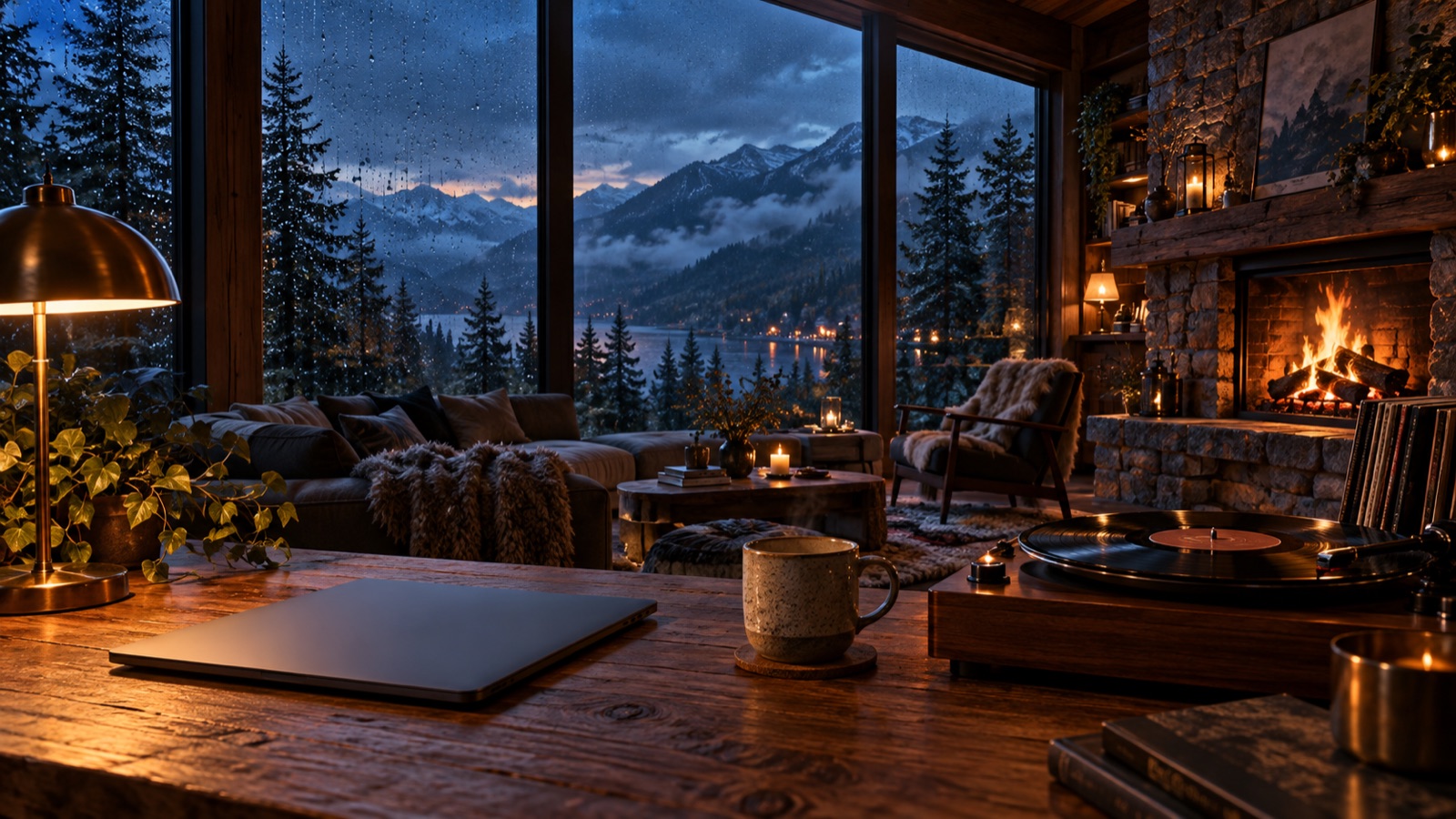
You’ve seen the idea: a fireplace, a rainy window or a quiet café playing on YouTube for hours. AI makes it easier to create the visual. The work is turning that visual into an experience someone chooses for studying, sleeping or relaxing.
This guide takes you from a blank page to a finished video and a live channel. Our example is a rainy cabin with a fireplace. Swap the setting, sound and audience to make it your own.
Your starter kit
Higgsfield or your preferred image/video generator.
CapCut or DaVinci Resolve, plus audio you can use commercially.
A YouTube channel with live access and a Beamd account.
Set a small budget for generation credits before experimenting. Start with one strong scene and a short test export; long renders can wait until the sound and loop work.
01 / FIND YOUR NICHE
Pick a reason to press play.
Choose the moment your channel belongs in: focused work, a cozy evening, reading, or winding down. A clear use is easier to design for than “relaxing videos for everyone.”
Search YouTube for fireplace ambience, rainy café ambience or ambient music for studying. Compare a handful of channels. Look at scene composition, the balance of music and background sound, titles, and comments explaining why people return.
| Starting niche | Your own angle | Sound direction |
|---|---|---|
| Fireplace | A mountain reading room after sunset | Soft crackle, rain, no music |
| Rainy café | An empty corner café at closing time | Gentle instrumental music, rain |
| Sleep ambience | A quiet train cabin at night | Steady rain and low room tone |
Use the research to understand the audience. Make your own visuals, audio mix, channel identity and thumbnails instead of downloading someone else’s upload.
02 / CREATE WITH AI
Build a place worth staying in.
Start in ChatGPT or Claude with a brief. Ask for a few scene directions, choose one, then refine the details. For the first video, a locked camera and a small amount of motion are easier to loop than a moving camera or a busy scene.
Help me plan an original YouTube ambience channel for people who read in the evening. Give me five distinctive rainy-cabin concepts. For each, describe the scene, lighting, subtle motion, sound layers and a clear audience promise. Avoid recognizable characters, brands and imitating a specific creator. Then write one detailed 16:9 image prompt for the strongest concept.
Generate the still, then animate it
Take your chosen prompt to Higgsfield or another visual generator. Generate a landscape image first. Inspect the fireplace, furniture, windows and reflections. Fix distracting errors before paying to animate the scene.
A cozy timber cabin reading room at blue hour. A stone fireplace glows on the right. Rain beads on a large window overlooking a pine forest. A wool blanket, books and a warm table lamp create a calm lived-in atmosphere. Cinematic natural lighting, realistic materials, wide 16:9 composition. Locked camera. No people, no text, no logos.
Animate your chosen image with restrained movement. Clip lengths and controls depend on the generator and model; you can assemble shorter clips in the editor rather than needing a single 30-second generation.
Keep the camera completely still and preserve the room’s geometry. Animate only a gentle natural flame and slow rain outside the window. Keep exposure and light levels stable. No zoom, pan, cuts, new objects or dramatic motion. Aim for a seamless loop with a similar start and end composition.
“Seamless” is a direction, not a guarantee. Preview the result for flicker, drifting objects and sudden lighting changes. Regenerate or trim the problem areas. Higgsfield also documents a connected ChatGPT workflow; the direct web editor works as a separate creation step.
03 / LOOP + AUDIO
Make the restart disappear.
A roughly 30-second visual can be a useful building block. It does not need to contain the entire listening experience. You might repeat the visual over a much longer, evolving soundscape.
- Set up a landscape timeline. For a straightforward first project, use 1920 × 1080 and a consistent frame rate such as 30 fps.
- Find a clean section. Remove camera drift, visual glitches and unwanted fades at the beginning or end.
- Join two copies. Put the second copy directly after the first and watch the transition. If needed, overlap a short portion and crossfade. Check for ghosting around the fire and window.
- Listen across the join. Crossfade rain or room tone so there is no click or sudden silence. Avoid reversing footage with fire, smoke or falling rain—it can look unnatural.
- Test several repeats. Watch full screen and listen on headphones. Pay attention to a distinctive crackle or musical phrase that becomes irritating when repeated.
- Export a test MP4. H.264 video with AAC audio is a practical starting choice. Play the exported file itself before uploading.
Give the sound as much attention as the picture
Record your own ambience, compose music, or use audio with a license covering your intended YouTube uploads and live streams. Check whether a license permits continuous music or ambience channels; some libraries restrict standalone listening content. Keep your license records.
YouTube’s Audio Library is another place to explore, with attribution requirements where specified. If using AI music, check the provider’s plan and commercial-use terms for the track you generated.
Blend a steady base layer with quieter details. Keep levels consistent, avoid clipping, and make sure your title describes the sound accurately. A “no music” fireplace should not surprise listeners with a soundtrack.
04 / PUBLISH ON YOUTUBE
Give the channel a clear promise.
Choose a channel name and visual style that fit the mood. Keep your first few uploads focused enough that a viewer knows what subscribing means.
- Title: describe the scene and use. Example: “Rainy Cabin Fireplace | Cozy Reading Ambience | No Music.” Only add a duration or “LIVE” when it is accurate.
- Thumbnail: use a strong frame with one focal point. Check that it still reads at phone size.
- Description: explain what viewers will hear, credit audio where needed and describe your creative contribution.
- AI disclosure: use YouTube’s AI-use disclosure setting when required. See YouTube’s disclosure guidance.
Publish a finished on-demand video as well as considering a live stream. Review audience retention and returning viewers in YouTube Studio, and use comments to choose the next scene. Test one meaningful change at a time.
Enable live access before launch day
Open YouTube Studio and choose Create → Go live. Complete YouTube’s verification and eligibility steps. First-time activation can take up to 24 hours. Check the current live-streaming requirements before scheduling your launch.
05 / GO LIVE WITH BEAMD
You made the video.
Let it keep playing.
Beamd runs the broadcast from the cloud, so your computer can be off after the upload and stream setup. Here is the current app workflow, shown with actual Beamd screens.
Screenshots captured October 8, 2026. Example library items and a sample broadcast title are shown; select your own finished video and channel. The short sample file illustrates the controls, not a recommended content length.
Upload your finished video
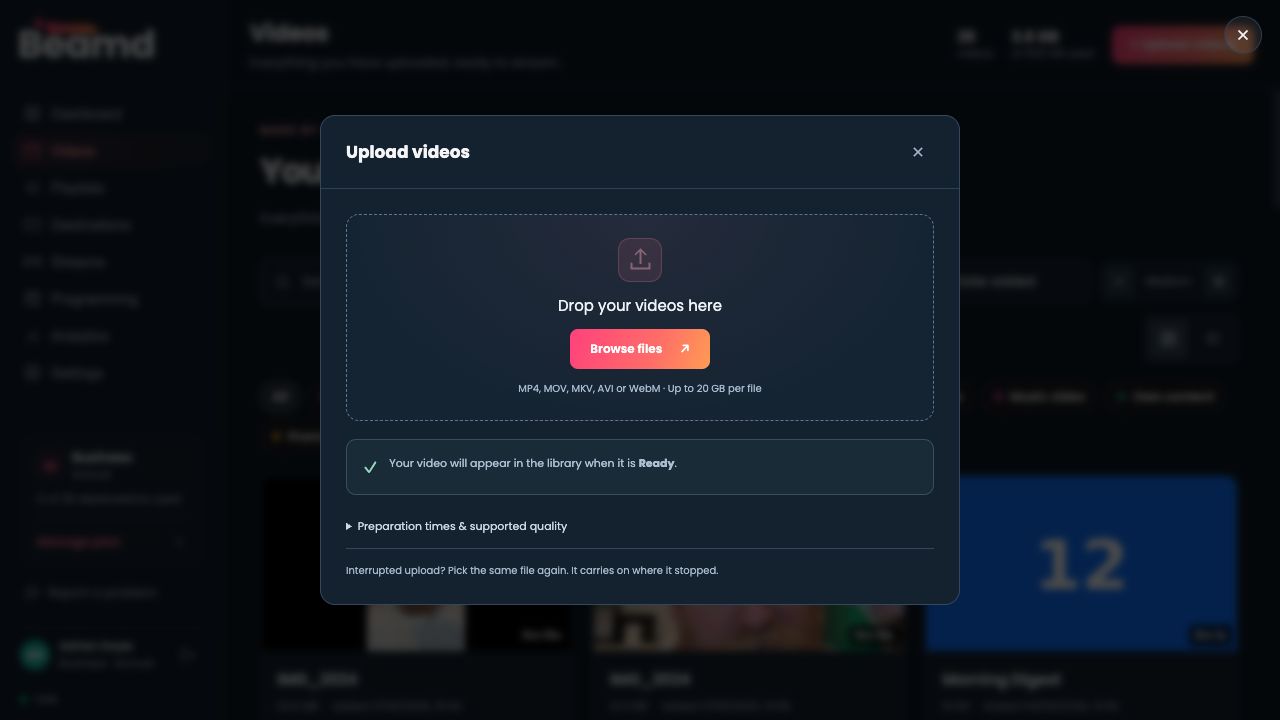
Create an account or sign in. Open Videos → + Upload videos. Drag your file into the dialog or select Browse files. Wait until the library marks it Ready; uploading and preparation are separate stages.
Connect your YouTube channel
Open Destinations → + Add destination. Choose YouTube, then Connect with YouTube. Select the Google account and channel you intend to use, review access, and complete the setup prompts. If Beamd shows Finish YouTube setup, finish that step before creating your stream.
Prefer a manual connection? Expand Use a YouTube stream key instead and use the details for your intended broadcast. Our YouTube stream-key guide explains where to find them. Keep the key private.
Choose the video or playlist
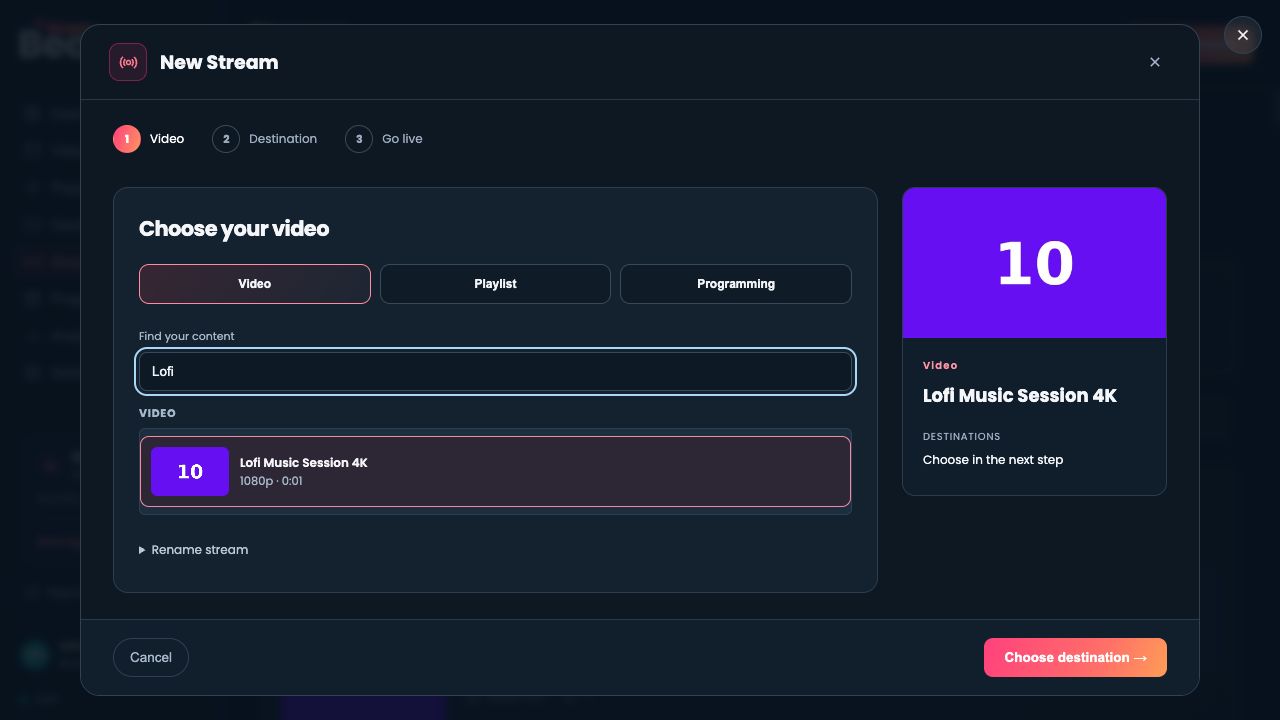
Open Streams → + New stream. In the Video step, select your finished file. Use Playlist if you have arranged several finished videos in Playlists. Give the stream a useful name, then choose Choose destination →.
Set the destination and repeat behavior
Select your YouTube destination. Under Quality and framing, choose a quality appropriate for the source; 1080p at 30 fps is a reasonable first setup for a 1080p ambience video. For one continuous looping file, leave Repeat video enabled. Check the repeat option for your chosen source before continuing.
Use Save for later if you are still preparing. When ready, select Review and go live →.
Review the broadcast and go live
For a connected YouTube destination, review the Broadcast title, Who can watch? and Is this content made for kids? fields. Choose the audience setting that accurately describes your content. A short Unlisted test lets you check the result before a public launch.
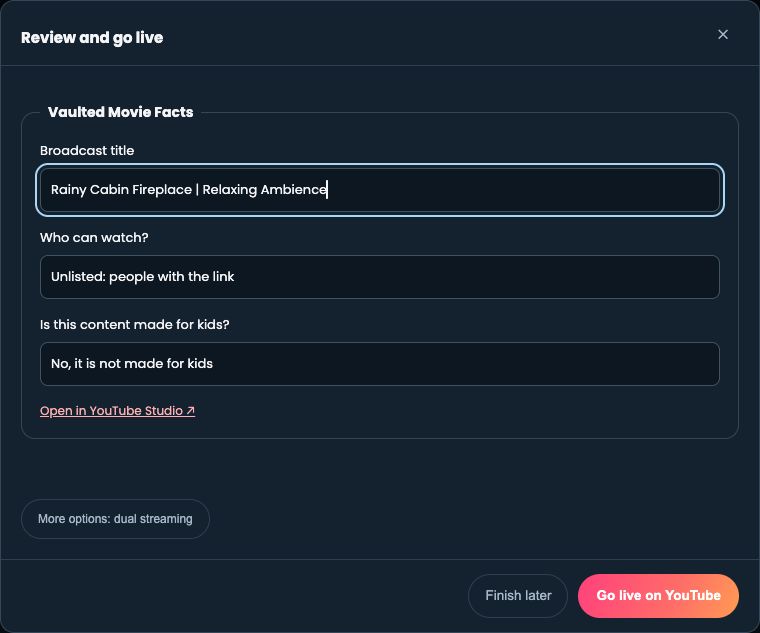
Press Go live on YouTube when those details are correct. Open the broadcast link Beamd gives you and check the picture, sound and loop on YouTube. With a manual stream key, check the matching broadcast in Studio and complete its go-live step if needed.
Once the stream is healthy, you can close your laptop. Check back periodically for platform notices, audio issues and stream health. Stop the broadcast from Beamd when you want it to end.
YOUR VIDEOS. ALWAYS ON.
Make your first scene a live channel.
Try Beamd free for 72 hours. No credit card required.
BUILDING TOWARD INCOME
Where the money fits in.
Potential revenue comes from the audience and the monetization features your channel qualifies for. A new upload or live stream does not automatically earn ad revenue.
For standard YouTube ad-revenue eligibility, the current thresholds are 1,000 subscribers plus 4,000 qualified public watch hours in 12 months, or the Shorts alternative of 10 million qualified Shorts views in 90 days. Meeting a threshold still requires application and channel review. Check YouTube’s current eligibility guidance and your Studio Earn tab.
YouTube reviews originality and authenticity across a channel. Repetitive or mass-produced videos with little variation can be ineligible even when you have rights to the assets. AI is a production tool, not an exemption from those requirements. See the monetization policies.
As the audience develops, consider eligible memberships, support features, relevant sponsorships or your own original music releases. Track costs as well as revenue: AI credits, audio rights, editing and streaming. No particular income or monetization outcome is guaranteed.
What does the first channel cost?
Generation and music costs depend on the tools and rights you choose. Beamd’s Starter plan is currently $19/month, with one simultaneous stream, three destinations and 50 GB storage. The free trial includes one stream, one destination, 20 GB and a watermark. Check current plans and trial details before choosing.
SAVE THIS BEFORE YOU START
Your first-stream checklist.
Tick these as you go. Your checks stay in this browser.
WHEN SOMETHING DOESN’T LOOK RIGHT
Quick fixes.
The loop visibly jumps.
Return to the editor. Trim the unstable frames and test a short overlap. If the camera or room has shifted too much, generate a calmer locked-camera shot. Repeating a file cannot repair a bad join inside it.
My video is still preparing.
Wait for Ready in Videos. Format, resolution and length affect preparation time. Open the upload dialog’s preparation notes for guidance. A failed file may need a fresh export before re-uploading.
Beamd is sending, but I can’t find the YouTube broadcast.
Use the broadcast link shown in Beamd. A connected account may use a different broadcast from the default Studio page. With a manual connection, confirm that the broadcast and stream key match. Also check YouTube live access and visibility.
I changed the playlist, but the stream still plays the old order.
An ordinary looping stream uses the playlist it started with. Restart it to load the revised playlist. Use Programming for changes to upcoming scheduled shows while broadcasting.
Can I start with a 30-second video?
A short clip can test the workflow. For a channel people return to, consider a more developed soundscape, several original scenes and distinct sessions. Technical looping capability does not guarantee viewers or monetization.
Do I need to keep my laptop on?
Only while creating and uploading your video. Once Beamd is running the stream, broadcasting happens in the cloud. You can return to the app to monitor, manage or stop it.
Need help with setup? Visit the 24/7 streaming guide or email hello@beamd.live.
KEEP EXPLORING
Tools, references and further reading.
This walkthrough is written for Beamd. These external resources informed the workflow and explain the tools and platform requirements in more depth.
- Loopa: AI looping videos and music workflow ↗Background on the ambience-channel format. Revenue examples are that publisher’s claims, not Beamd forecasts.
- Higgsfield: generating videos from ChatGPT ↗Official connected-tool walkthrough; models, credits and availability can change.
- YouTube: getting started with live streaming ↗Live-access requirements and platform setup.
- YouTube: Audio Library ↗Music, sound effects and attribution instructions.
- YouTube: content you can monetize ↗Original content and commercial-use rights.
- YouTube Partner Program eligibility ↗Thresholds, review and which watch hours count.
- YouTube channel monetization policies ↗Originality, reused content and repetitive or mass-produced content.
FROM ONE SCENE TO YOUR OWN CHANNEL
Create the atmosphere.
Keep it on with Beamd.
Start your free trial ↗72 hours free · No credit card · See plans